.png?width=350&height=78&name=Black-on-Transparent_GlassHouse-Logo%20(1).png)
Before you can segment or message customers, you’ll first add your client list to ReEngage.
You can import contacts using a CSV file, add individual contacts manually or connect an integration to sync automatically.
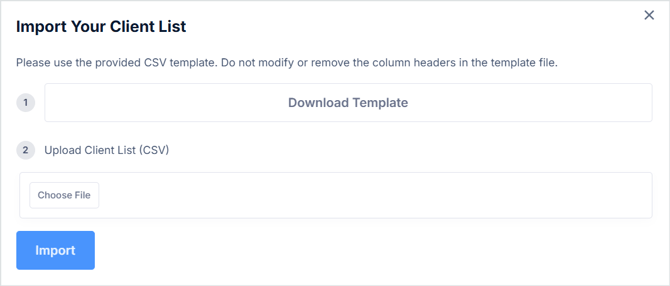
📥 Import a CSV
-
Select Import in the upper-right corner
-
Download the template
-
Copy and paste your data into the template
-
Save the file as .CSV
-
Upload your file
-
Import
Notes
-
Imports are self-serve
-
Importing and property enrichment use 0 credits
-
You can bulk delete and re-upload if needed
🔗Best Practices and Troubleshooting for CSV Import
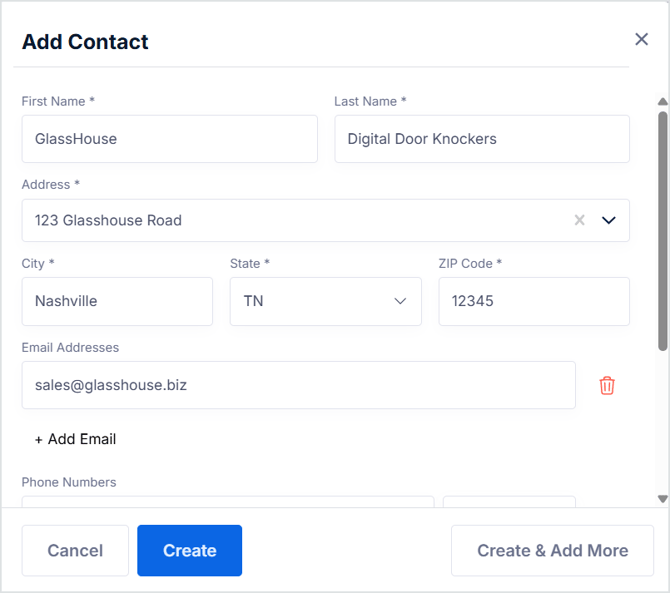
➕ Add a Single Contact
-
Select Add Contact
-
Enter required fields *
-
Select Create or Create & Add More