.png?width=350&height=78&name=Black-on-Transparent_GlassHouse-Logo%20(1).png)
💡 What It Is + Why You Want to Use It
Automations handle what happens after a lead replies—so you don’t have to.
When a lead responds positively, Automations trigger actions like sending a message, notifying another system, or handing the conversation to AI.
Use Automations to:
- respond instantly when a lead replies
- ensure every Hot Lead gets immediate follow-up
- reduce manual work
- keep responses consistent across your team
- scale outreach without missing opportunities
Automations are built around a Positive Reply Automation, which runs on the first positive reply.
⚙️ How to Use Automations
From the main menu, select AutomationsYou will land on the Automations page
Choose a tab:
- AI Responder (Universal Credit Plans only)
- Actions (available to all plans)
Actions: Configure Positive Reply
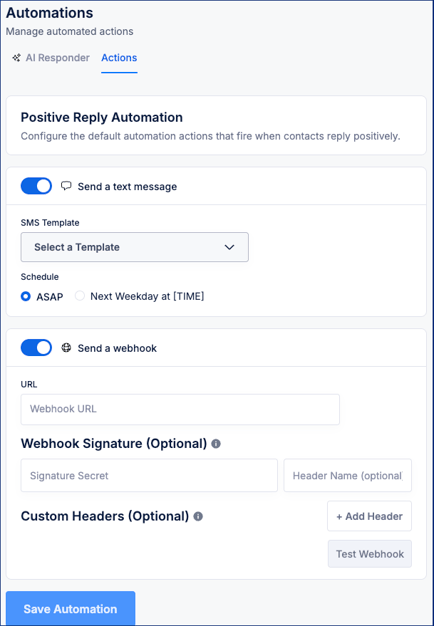
Send a Text Message:
Toggle Send a text message ON (optional)
Select a Template
Choose a schedule:
ASAP
Next Weekday at [TIME]
Send a Webhook
Toggle Send a webhook ON (optional)
Enter Webhook URL
Add: Webhook Signature (secret + header name)
Custom Headers(Optional)
Test Webhook
Save Automation
Configure AI Responder (Universal Credit Plans Only)
From the AI Responder tab and New Agent
Configure the agent:
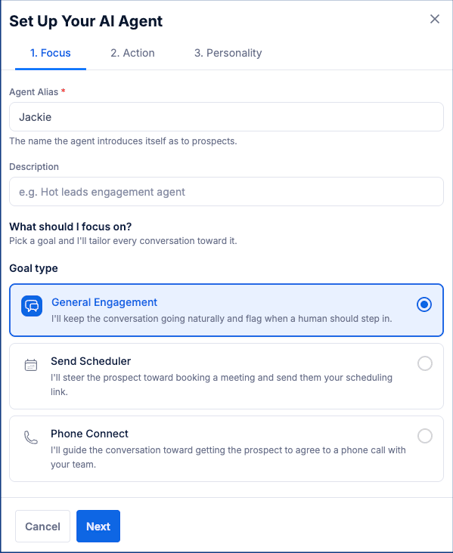
1. Focus
Name / Alias
Description
Goal Type:
General Engagement
Send Scheduler
Phone Connect
2. Action
Configure follow-ups:
1 hour after no response
24 hours after no response
Professional
Casual
Friendly
Test AI Responder
- Scroll to Start a new conversation demo
- Enter your outreach message
- Click Start Conversation
- Simulate replies to see how AI responds
Apply Automations to Campaign
- Go to Campaigns
- Create or open a campaign
- Locate Automation settings
- Choose one:
- Disable Reply Automation
- Use Default Positive Reply Automation
- Override for this campaign
- (Optional) Enable AI Responder
- Select an agent
- Complete campaign setup and launch
⚙️ How It Works
- Automations trigger on the first positive reply only
- They run per campaign, not globally
- Actions can include SMS, webhook, or AI response
- AI handles the conversation unless a user takes over
⚠️ Important Notes & FAQs
| Topic | Details |
|---|---|
| Trigger | Automations run only on the first positive reply per enrollment |
| Frequency | Automations do not repeat for the same lead |
| Scope | Automations are set per campaign, not globally |
| Warm leads | Warm automations no longer exist |
| Email actions | Email-based automations are not supported |
| Multiple actions | SMS and webhook can run together |
| AI behavior | AI responds with a natural delay and follows configured goals |
| AI limits | Conversations are capped and escalate to a human when needed |
| Takeover | You can take over AI conversations at any time |
| Without Universal Plan | Only Actions tab is available |
| AI enabled behavior | AI takes over the conversation automatically |
| Overrides | Each campaign can override automation behavior |
🧩 Pro Tip
Turn this on early.
A simple automated response ensures every Hot Lead gets a quick follow-up—even when you're busy.
If you're on a Universal Credit Plan, AI Responder can handle those conversations for you in real time.
🚀 Want to Do More with Automations?
The AI Responder is available on the Universal Credit Plan.
To learn more or upgrade, contact your Account Executive or email sales@glasshouse.com.