.png?width=350&height=78&name=Black-on-Transparent_GlassHouse-Logo%20(1).png)
💡 What It Is
Automations in GlassHouse allow you to send SMS messages automatically when specific events occur — like when a lead becomes Warm or Hot. Instead of manually sending each text from the Sales Board, you can create workflows that deliver messages instantly or on a set schedule, keeping your outreach consistent and hands-free.
Once your triggers and message templates are set, GlassHouse takes care of the timing, delivery, and follow-up — so you can focus on real conversations and converting leads, not managing message queues.
🎯 Why You Want to Use It
Automations eliminate repetitive follow-up work and keep your outreach consistent.
By scheduling text messages to send automatically when certain triggers occur, you ensure timely contact with every qualified lead — without needing to manually send messages from the Sales Board.
⚙️ How It Works
Each GlassHouse account includes ready-made automation templates and the option to create your own.
Follow these steps to build an SMS-specific automation that works around your lead activity.
Prepare Your Templates
-
Navigate to Templates from the left-hand menu.
-
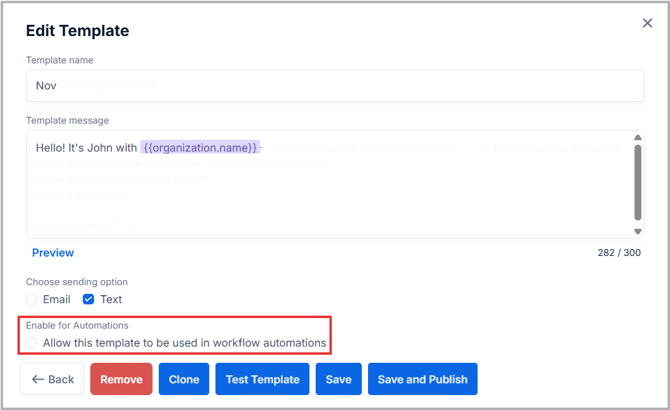
Create or edit your Warm and Hot message templates.
-
Check the box labeled Allow Template for Automations in the bottom left corner of the template.
-
Select Text as your communication method.
🧩 Pro Tip:
Hot leads can be triggered by link clicks or positive replies. Keep your SMS content broad enough to fit either use case.
Set Up the Automation
-
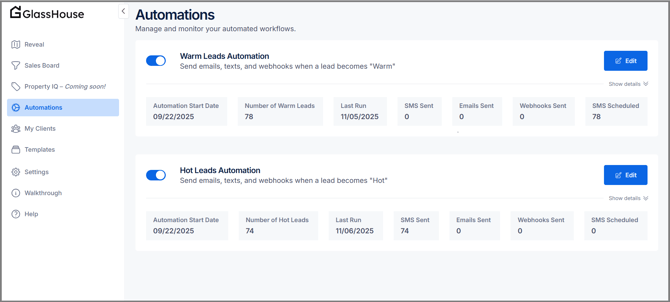
From the left-hand menu, select Automations.
-
Click + Create Automation or edit an existing one.
-
Define your Trigger, such as:
-
When a lead becomes Hot
-
When a lead becomes Warm
-
-
Under Action, select Send SMS.
-
Choose the appropriate Template and confirm message text.
🧩 Pro Tip:
Automations are ideal for next-day or delayed sends — they keep communication timely without overwhelming new leads.
Save and Activate
-
Review all trigger and message details.
-
Click Save to store your workflow.
-
Toggle the automation ON to activate it.
-
Once live, GlassHouse will send your SMS messages automatically based on your trigger setup.
⚠️ Important:
Automations contact only the number tied to the event that triggered the lead status change. Safeguards prevent duplicate sends from automatic Warm transitions.
🙋♀️ FAQs
| Question | Answer |
|---|---|
| What’s the difference between Automations and Sales Board scheduling? | Sales Board scheduling handles one-time sends. Automations handle recurring or trigger-based sends. |
| Can I edit a live automation? | Yes. Pause it first, make changes, then toggle it back on. |
| Will template edits update existing automations? | Yes — automations always use the latest saved version of your template. |
| Do automations bypass contact limits? | Yes. Warm/Hot-triggered automations bypass standard contact frequency restrictions. |
🧠 Pro Tips
-
Use automations for hands-free follow-ups after Warm/Hot lead transitions.
-
Keep templates short, compliant, and branded with your business name.
-
Test small before scaling to full lead lists.