.png?width=350&height=78&name=Black-on-Transparent_GlassHouse-Logo%20(1).png)
What This Is
Sales Board Settings allow you to control how long prospects and leads remain on the Sales Board when there is no activity, and whether certain phone numbers (DNC or Home) are visible on lead cards.
These settings help keep your Sales Board organized, compliant, and focused on actionable opportunities.
Note: Sales Board Settings are only available to customers on Universal credit plans.
Why This Matters
Over time, inactive prospects and leads can clutter the Sales Board and make it harder for teams to focus on active opportunities.
Sales Board Settings help you:
-
Automatically remove inactive prospects and leads
-
Maintain accurate Warm and Hot Lead stages
-
Ensure reps only see leads they can effectively contact
Before You Begin
Before configuring Sales Board Settings, confirm the following:
-
Your account is on a Universal credit plan
-
You have access to the Sales Board
-
Expected setup time: 2–3 minutes
How to Configure Sales Board Settings
1. Open Sales Board Settings
-
Navigate to the Sales Board
-
In the top-right corner, click Settings ⚙️
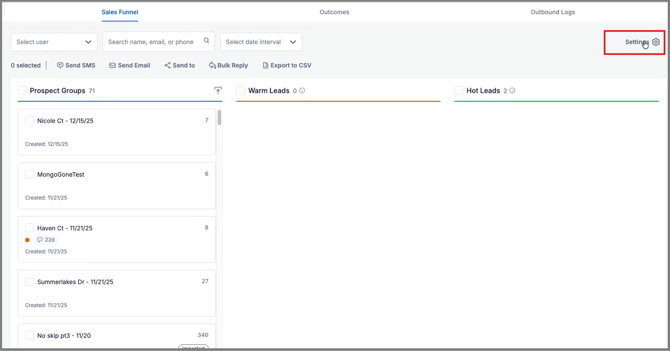
The Sales Board Settings modal opens.
2. Configure Automatic Removal Timelines
You can define how long items remain on the Sales Board when there is no activity.
Available options include:
-
Prospect Groups
Automatically removed after the selected number of days with no activity -
Warm Leads
Automatically removed after the selected number of days with no activity -
Hot Leads
Automatically removed after the selected number of days with no activity
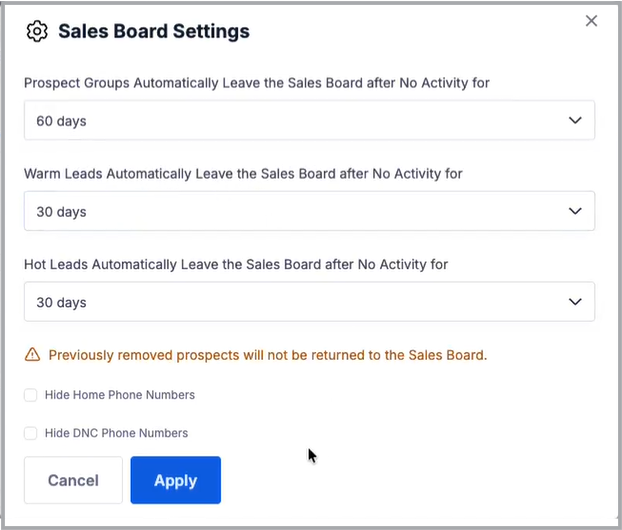
Select the timeframe that best fits your workflow for each category.
3. Configure Phone Number Visibility
Sales Board Settings also allow you to control which phone numbers appear on lead cards.
You can toggle:
-
Hide Home Phone Numbers
-
Hide DNC Phone Numbers
Important: These options are enabled by default.
How Phone Number Hiding Works
If a lead card has multiple contact methods:
-
Only Home or DNC phone numbers are hidden
-
The lead card remains visible if other valid contact methods exist (mobile phone or email)
If a lead card has only Home and/or DNC phone numbers and no email:
-
The entire lead card is hidden from the Sales Board
This ensures you only see leads that are both compliant and actionable.
4. Save Your Settings
-
Click Apply to save your changes
-
Click Cancel to exit without saving
FAQs
| Question | Answer |
|---|---|
| I do not see Sales Board Settings in my account. | Sales Board Settings are only available to customers on Universal credit plans. Ask us how to convert your current plan. |
| Where can I find removed prospects or leads? | Removed items are moved to Outcomes → Removed. |
| Why did a lead disappear from the Sales Board? | Common reasons include: • The lead exceeded the inactivity timeframe you configured • The lead only had Home or DNC phone numbers and no email |
| What activity prevents a lead from being removed? | Activity includes actions such as sending or receiving messages, calls, or status updates. |
| What happens when Home or DNC phone numbers are hidden? | If other valid contact methods exist (mobile phone or email), only the Home or DNC numbers are hidden. The lead card remains visible. |
| When is an entire lead card hidden? | If a lead has only Home and/or DNC phone numbers and no email, the entire card is hidden from the Sales Board. |
| Can I change these settings later? | Yes. You can update Sales Board Settings at any time by returning to the Settings ⚙️ icon on the Sales Board. |