.png?width=350&height=78&name=Black-on-Transparent_GlassHouse-Logo%20(1).png)
💡 What It Is
The Template Builder allows you to create, edit, and manage messaging templates — now enhanced with Ask Jackie AI for generating high-performing, personalized copy.
New updates include:
- Clickable placeholders
- Placeholder tooltips
- Enhanced AI button label
- Updated scheduling flow
🎥Watch the Video: Creating Templates and Using Ask Jackie AI
🎯 Why You Want to Use It
The new interface helps you:
- Write better messages faster
- Maintain consistent personalization
- Improve deliverability with structured content
- Easily preview, clone, and test templates
- Confidently schedule messages with a clearer workflow
⚙️ How It Works
1. Navigate to Templates
Go to Templates in the Messaging Center.
Click Create.
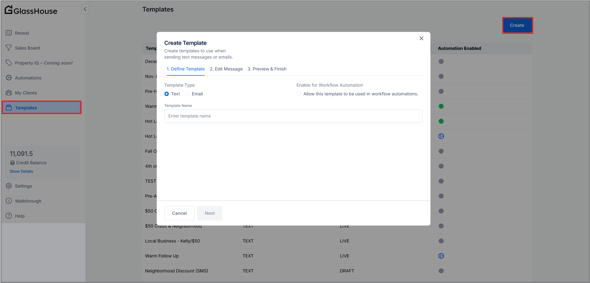
2. Name Your Template
Enter a descriptive name (e.g., “December Promo”).
Click Next.
3. Enter Your Idea
Type a short description of your concept (e.g., “We want to offer $100 off this December.”)
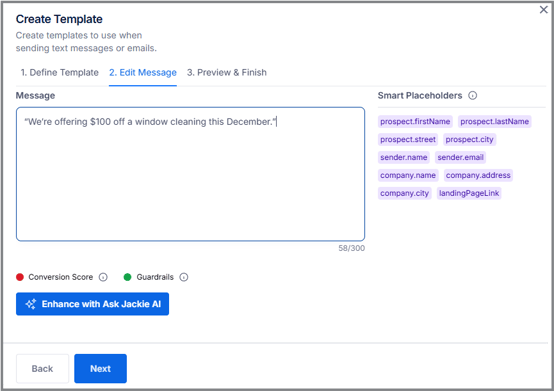
GlassHouse will show a conversion score with a tooltip explaining improvement opportunities.
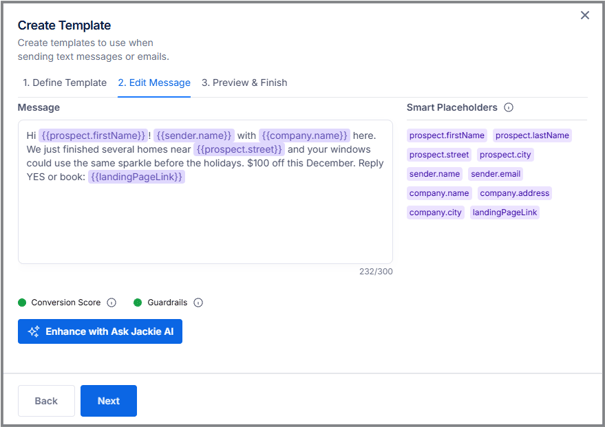
4. Click “Enhance with Ask Jackie AI”
Jackie transforms your idea into a polished message including:
-
Dynamic personalization tags
-
Brand-aware tone
-
A built-in call to action
-
Your dynamic landing page link
-
Clean and compliant formatting
5. Use Clickable Placeholders
All placeholders on the right side of the editor are now clickable.
-
Clicking one inserts it where your cursor is
-
Hovering shows a tooltip describing what the tag does
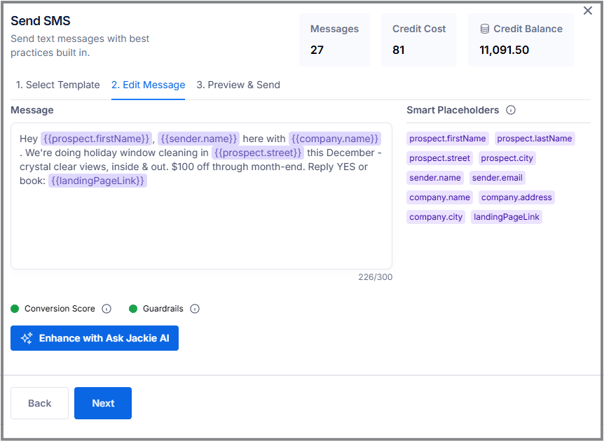
6. Edit, Enhance Again, or Finalize
You can:
-
Add more text
-
Insert placeholders
-
Re-enhance with AI
-
Manually revise any part of the message
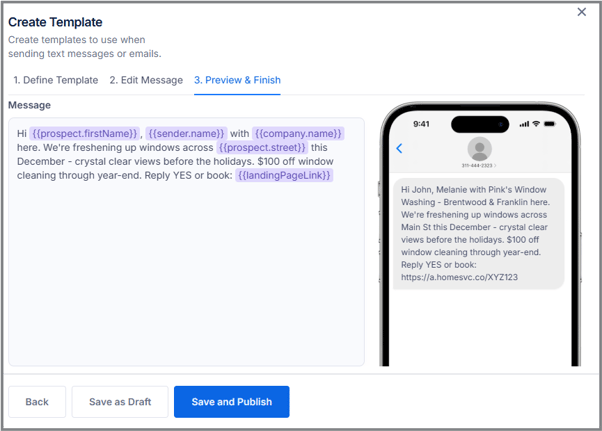
Click Next to preview.
7. Save & Publish
Review the preview → click Save & Publish.
💡 Pro Tips for Getting the Best Results from Ask Jackie AI
Ask Jackie AI creates strong message copy based on the information you provide. Since the AI currently uses only your draft idea, company location, and date, it cannot automatically determine what service you offer.
To help Jackie generate accurate, personalized copy:
Include a clear hint about the service in your initial idea.
Examples:
-
Instead of: “We’re offering $100 off this December”
Try: “We’re offering $100 off a window cleaning this December.” -
Instead of: “Running a spring promo”
Try: “Running a spring gutter cleaning promo.” -
Instead of: “Holiday special — $75 off”
Try: “Holiday special — $75 off pest control services.”
Adding even one descriptive phrase dramatically improves the message Jackie generates.
🔧 Managing Templates
You can:
Clone a Template: Makes an exact copy for variations.
Test a Template: Send a test message to yourself.
Remove a Template: Safely delete templates you no longer use.
All options are available from the template popup or template list.
💬 How Templates Work During the Send Flow
1. Select Template from the Sales Board
Choose Actions → Send on any group.
Your templates appear in the list.
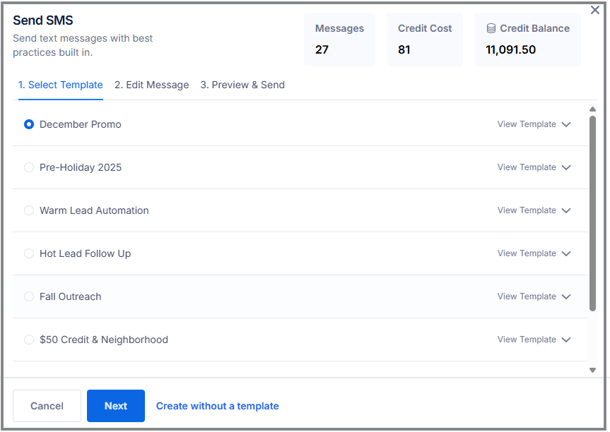
Select Next to Preview or Edit your template
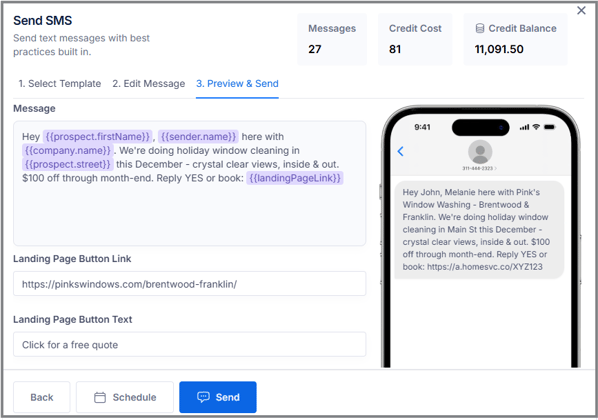
2. Default Landing Page Settings Auto-Fill
During Preview & Send:
-
Your landing page link
-
CTA button text
-
If you want a promo-specific or territory-specific link, you can update it here.
This does not change your defaults.
📅 Updated Scheduling Experience
The new scheduling flow includes:
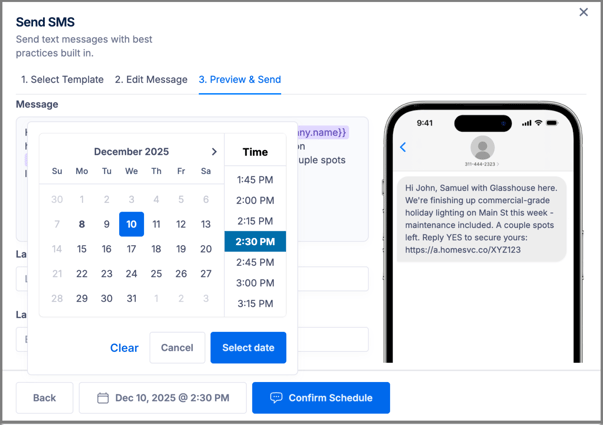
1. Click “Schedule”
Opens a calendar popup.
2. Select a Date & Time
Pick when you want your message to send, then click Confirm.
3. Button Updates Automatically
-
The schedule button shows the date/time you selected
-
The Send button changes to Confirm Schedule, which finalizes the scheduled send
4. Clearing a Scheduled Send (New)
If you selected a date/time but no longer want the message to send on a schedule:
-
Click Schedule again
-
Click Clear at the bottom of the calendar popup
-
Your selected send time is removed
-
The Send button returns to the normal Send Now option
This allows you to fully reset the schedule for any message that has not yet been sent.
🙋♀️ FAQs
| Question | Answer |
|---|---|
| Can I enhance older templates with Jackie? | Yes — open any template and click Enhance with Ask Jackie AI. |
| Do clickable placeholders break older templates? | No — placeholders work in both new and existing templates. |
| Will Ask Jackie AI always add my landing page link? | Yes — landing page links automatically replace raw links in SMS messages for compliance and consistent deliverability. |
| If I override the link for a message, does it change my defaults? | No — overrides apply only to the message you're currently sending. Your landing page defaults remain unchanged. |
| What happens to my automation templates that previously used links? | We automatically migrated them. Any remaining raw links are removed when sending, and SMS messages now use landing page links instead of direct URLs. |
| Are emails impacted by Ask Jackie AI or landing page link rules? | No — email messages are not affected. Ask Jackie AI currently applies only to SMS, and emails can still contain raw links. Email and SMS templates are no longer shared. |