.png?width=350&height=78&name=Black-on-Transparent_GlassHouse-Logo%20(1).png)
💡 What It Is & Why You Want to Use It
Get notified the moment something exciting happens! User Alerts keep you in the loop when a prospect engages—whether they click a link or send a positive response (Hot Lead). Behind the scenes, AI monitors replies and activity in real time, so you don’t have to. This feature helps you act fast, prioritize the hottest leads, and reduce the chance of missed opportunities.
By default, you’ll receive daily alerts for each of these alerts—but you can change that anytime in your profile settings.
⚙️ Alert Types & Triggers
| Alert Type | Trigger Description |
|---|---|
| Positive Response | When a prospect responds with messages such as “yes” or “tell me more,” this is an example of a Hot Lead. |
| Link Click | Prospect clicks on a tracked link in your message. |
🎯 Lead Criteria
Warm Lead Requirements
- 1 or more link clicks or
- 3 or more email opens
Hot Lead Requirements
- 5 or more email opens + 1 or more link clicks or
- 3 or more link clicks or
- Positive response
⚙️ Editing Alert Frequency
- Log in to your GlassHouse account.
- In the left-hand navigation panel, hover over your name.
- Click on Profile.
- Find the User Alerts section.
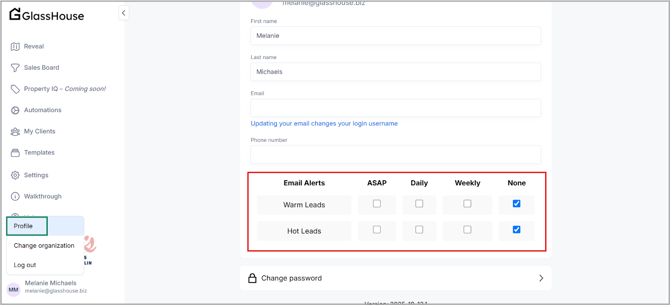
For each alert type, choose how often you'd like to be notified:
- ASAP – Get alerted in real time
- Daily – One summary email per day
- Weekly – One summary email each week
- None – Turn off alerts for that type
🙋 FAQs
| Question | Answer |
|---|---|
| Can I choose to receive one type of alert but not the other? | Yes - each alert type (Link Clicks and Positive Responses) can have its own frequency setting. |
| How do I receive alerts and when are they delivered? | Daily alerts are delivered to your mail each morning beginning at 9AM CT. Weekly alerts are defaulted to deliver on Wednesday, 9AM CT. |
| Can I update another user’s alert preferences? | No. Each user must log in and change their own settings. |
| What happens when I click the “Follow Up Now” button? | That depends on your alert frequency setting: • ASAP: Takes you directly to the individual lead so you can follow up right away. • Daily/Weekly: Opens the Activity View filtered to the relevant date range so you can view all related prospect activity. |