.png?width=350&height=78&name=Black-on-Transparent_GlassHouse-Logo%20(1).png)
💡 What It Is & Why You Want to Use It
Importing a Prospect Group allows you to bring your own list of contacts into Outreach using a CSV file.
Use this when you:
- Already have a list of prospects you want to message
- Want to skip manual prospecting in Reveal or ReEngage
- Need flexibility to upload verified data or enrich it through GlassHouse
You can choose to enrich your list (add missing data) or use your own data as-is.
⚙️ How to Import a Prospect Group
Before You Begin: Prepare Your CSV File
- Download Template
- Use the template exactly as provided (do not modify headers)
- Include required fields:
- Address, City, State, Zip Code
- First Name
- Last Name
- Phone Number or Email
- Limit your file to 500 rows per upload
👉 Use the CSV Best Practices guide to avoid formatting issues
Open Prospect Import
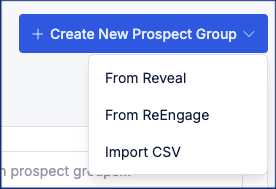
Navigate to Outreach
Select + Create New Prospect Group
Select Import CSV
Configure Your Import
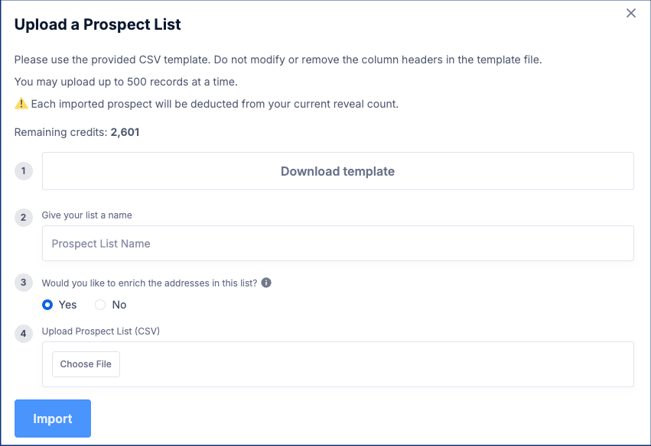
- Enter a Prospect List Name
→ This becomes your Prospect Group name in Outreach - Choose if you want to Enrich Addresses:
- Yes (Recommended)
- Adds missing contact and property data
- Replaces uploaded contact data if better data is found
- Each row deducts from your reveal credits
- No
- Uses only the data you uploaded
- Phone numbers are still checked against the DNC registry
Upload and Import
- Click Choose File and upload your CSV
- Click Import
⚠️ Important Notes & FAQs
| Topic | Details |
|---|---|
| Row Limit | Maximum 500 rows per upload |
| Missing Data | Rows missing required fields will be skipped |
| Credit Usage | Only applies if enrichment is selected |
| Group Behavior | Each import creates a new Prospect Group |
| Editing Groups | You cannot add more prospects to an existing imported group |
| Data Quality | Clean formatting improves match rates and reduces skipped rows |
⚡ Pro Tip
Start with a small test file before uploading a full list to catch formatting issues early.