.png?width=350&height=78&name=Black-on-Transparent_GlassHouse-Logo%20(1).png)
What It Is
Learn how to send SMS messages from your Sales Board to engage your prospects, schedule campaigns, and track activity across your revealed groups.
Why It Matters
Your Sales Board is where your revealed leads live — and where the real outreach begins. Sending messages directly from here ensures your communication is tracked, compliant, and strategically timed for best results.
⚙️ How to Send Messages
Confirm Your Group Is on the Sales Board
-
From your dashboard, navigate to the Sales Board tab.
-
Confirm that your desired Group (e.g., Avid Drive) is visible.
-
You should see your contacts listed within that group.
🪄 Pro Tip: Only groups shown on your Sales Board can receive messages. If your group isn’t there, return to your Prospect List and send it to the Sales Board first.
Review or Edit Your Templates
- Before sending your first message:
- Click on Templates in the main navigation.
- Review the pre-built options available for your organization.
- Customize your templates by:
-
-
Adding your website link
-
Updating your promotion or offer
-
Ensuring your call-to-action is clear and engaging
-

-
“Hi , it’s [Business Name]! We’re offering a $50 neighborhood credit for services booked this week. Tap below to claim: .”
💡 Pro Tip: Review and finalize templates before sending your first campaign. This keeps your messaging consistent and on-brand.
Select the Group You Want to Message
- Return to your Sales Board.
- Select the checkbox on Group Card(s) (e.g., Avid Drive).
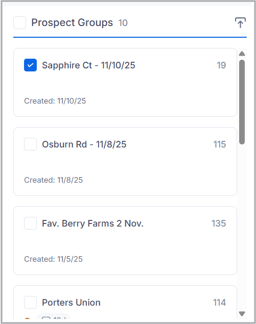
- The Send SMS button will now be highlighted in blue. Select Send SMS
Choose and Edit Your Template
- Select the template you’d like to send (e.g., $50 Credit Neighborhood Offer).
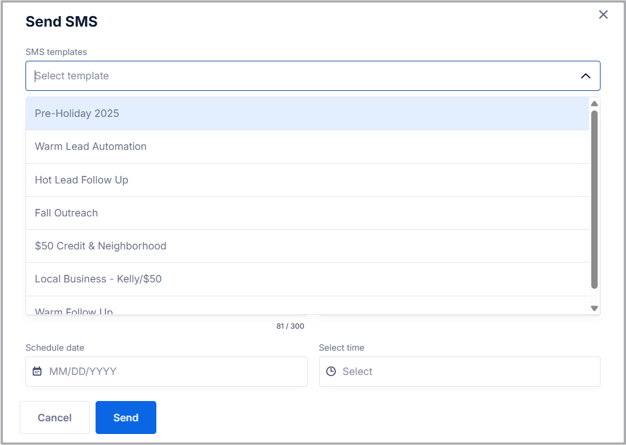
2. Make any last-minute edits — like adding a neighborhood name or time-sensitive promo.
3. Confirm everything looks correct before sending.
Keep personalization short and relevant. Avoid editing the opt-out or brand name sections of approved templates.
Send or Schedule Your Message
You have two options:
Option 1: Send Now
- Click Send to deliver immediately.
- The message will go out right away to all prospects in that group.
- Click Schedule, then select a date and time.
- Ideal for batching messages or planning ahead for promotions or upcoming jobs.
- Morning: 9–10 AM (strong open and reply rates)
- Evening: 5–8 PM (peak engagement window)
Schedule ahead if you’re running multiple campaigns or want a steady flow of outreach throughout the week.
Verify the Message Sent
Once your message has been sent:- You’ll see a “Sent Confirmation” badge appear on the group card.
- A red dot will indicate that the group has reached its one-contact limit for the 30-day window.
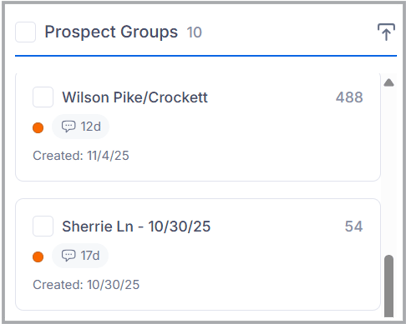
You can only send one outreach message per group every 30 days. After that, you can only message Warm or Hot leads that replied.
Optional – Send to Warm Email
If you have Instantly integrated:- Checkmark the group(s).
- Click Send To → Instantly.
- Choose your campaign from the dropdown and click Send.
If you’re not yet set up for Warm Email, your onboarding specialist will guide you through that process separately.
✅ You’ve now learned how to:
- Confirm your group is ready on the Sales Board
- Choose and edit templates
- Send or schedule messages
- Verify message delivery and activity badges
- Send leads to Warm Email (optional)
This process ensures your campaigns are strategic, timely, and trackable.
🎥 Watch the Training Video
How To Send SMS and Email Messages
🙋♀️FAQs
| Question | Answer |
|---|---|
| Why can’t I send another message to this group? | You can only send one outbound message per group every 30 days. After that, only active leads (Warm or Hot) can be contacted again. |
| My Send SMS button isn’t blue — what does that mean? | The group may not be on your Sales Board yet or hasn’t been enriched. Try sending it from your Prospect List first. |
| Can I change the scheduled time after it’s set? | Yes — open the scheduled message, adjust the time, and click Update Schedule before it sends. |
| What happens if I edit the template after scheduling? | The scheduled message won’t update automatically. You’ll need to reschedule with the new version of the template. |
| Can I send to multiple groups at once? | Not currently — messages are sent on a per-group basis to ensure proper tracking and compliance. |
🧠 Pro Tips
-
Review templates weekly to keep offers fresh.
-
Schedule in advance for consistent weekly engagement.
-
Use local time zones when scheduling across regions.