.png?width=350&height=78&name=Black-on-Transparent_GlassHouse-Logo%20(1).png)
💡 What It Is
Need to connect ServiceTitan to GlassHouse? Once you’ve provided your Tenant ID to the GlassHouse team, this guide shows how to generate your Client ID and Secret Key — your secure login credentials used for integration setup.
🎯 Who Can Do This
Only ServiceTitan Admins (tenant admins) can generate the Client ID and Secret Key.
⚙️ Step-by-Step Instructions
1. After you provide your Tenant ID to our GlassHouse Support Team:
Sign in to your ServiceTitan account.
Make sure you’re in the correct environment (either Production or Integration/Testing).
2. Go to API Access Settings
From the left-hand menu, click:
Integrations → API Application Access
This opens the Manage API Application Access page.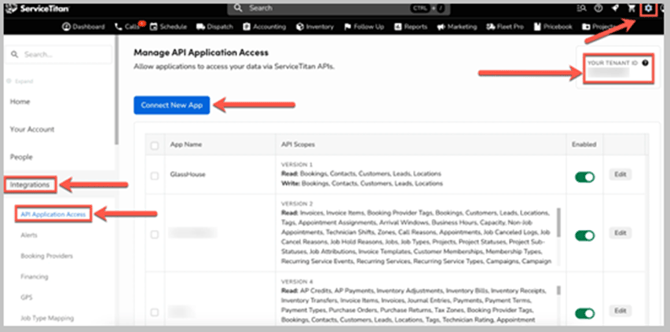
3. Click “Connect New App”
If you’ve previously connected apps, you’ll see them listed here.
If the app you want to connect isn’t listed, the developer may need to add your Tenant ID through their ServiceTitan Developer Portal.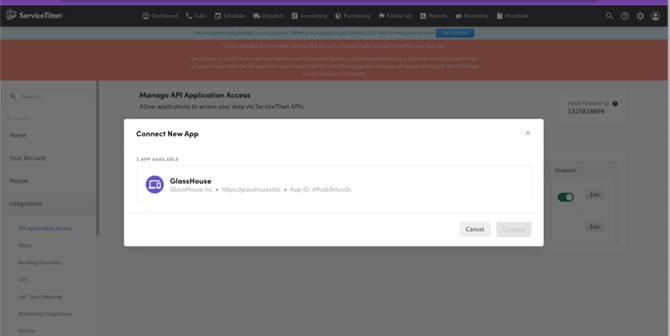
4. Select the App You Want to Connect
A list of permissions (called API Scopes) will appear. These define what data the app can access.
5. Allow Access
Choose Allow to grant the app access.
Once approved, your GlassHouse Team will handle the rest!
🙋 FAQs
| Question | Answer |
|---|---|
| Does the environment matter? | Yes. The Client ID and Secret Key are tied to the specific environment where they were created (e.g., Production vs. Testing). Be sure to use the correct keys for each environment. |
| What if I have multiple tenants? | You’ll need to repeat these steps for each tenant account. Each tenant generates a unique Client ID and Secret Key. |
| What happens when you share keys? | You’re granting that app permission to access your data and perform tasks on your behalf. Only share keys with apps and developers you trust. |