.png?width=350&height=78&name=Black-on-Transparent_GlassHouse-Logo%20(1).png)
💡 What This Feature Is
Neighborhood Search allows you to click on a neighborhood directly from the Reveal Map and instantly reveal all eligible properties within that neighborhood.
Instead of manually drawing polygons or selecting individual streets, Neighborhood Search uses county property data to identify neighborhood boundaries and associated properties.
Note: Neighborhood Search is only available on Universal credit plans.
Organizations on older plans will see a prompt to contact GlassHouse Support to upgrade.
🎯 Why It Matters
Neighborhood Search helps you work faster and plan outreach more efficiently.
With this feature, you can:
-
Quickly reveal entire neighborhoods with a single click, eliminating manual shape drawing.
-
Understand credit cost before revealing properties
-
Reveal more prospects than standard searches allow
✅ Before You Begin
Before using Neighborhood Search, confirm the following:
-
Your account is on a Universal credit plan
-
You have sufficient reveal credits available
🛠️ How to Use Neighborhood Search
Step 1 — Open Neighborhood Search
-
Navigate to the Reveal Map
-
Locate the Neighborhood button on the map
-
Click Neighborhood
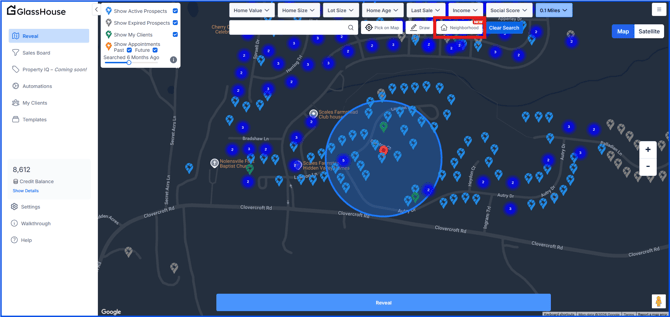
Important:
If your organization is not on a Universal credit plan, you will see a message prompting you to contact GlassHouse Support to upgrade.
Step 2 — Select a Neighborhood on the Map
-
With Neighborhood Search enabled, click directly on the map where a neighborhood is located
-
The map will automatically switch to satellite view for easier identification
-
Review the highlighted neighborhood boundary
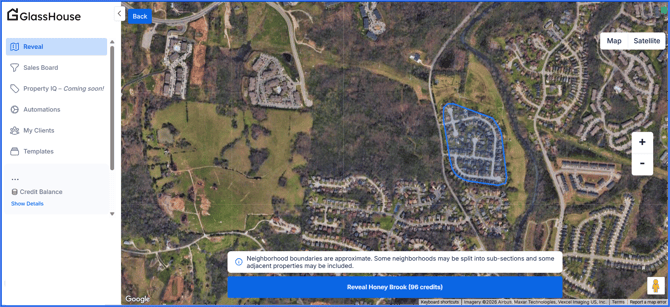
After selecting a neighborhood, you will see the total credit cost required to reveal it.
-
Each property costs one credit
-
Neighborhood Search supports larger prospect counts than standard searches
-
There is a limit of 2,000 prospects for a single Neighborhood Search
Step 3 — Reveal the Neighborhood
-
Click Reveal
-
Click Send to Sales Board
-
Review the suggested name
-
The suggested name uses the neighborhood name, not a street name
-
-
Confirm and send
From this point forward, the workflow is the same as any standard reveal.
ℹ️ How Neighborhood Boundaries Work
Neighborhood boundaries are based on county property and subdivision records.
Because data varies by location:
-
Boundaries are approximate
-
Some neighborhoods may be split into multiple sections
-
Adjacent or outlying properties may occasionally be included
-
Some properties may not belong to any neighborhood
This behavior depends on how local property records are maintained and may vary by region.
🙋 FAQs
| Question | Answer |
|---|---|
| Is there a limit to how many prospects I can reveal at once? | Yes. Neighborhood Search supports larger prospect counts than standard searches, with a hard maximum limit of 2,000 prospects per reveal. |
| Why do neighborhood boundaries look uneven or irregular? | Boundaries are based on county property data. Some neighborhoods are divided into sections or include outlying properties based on local records. |
| Does the credit cost equal the number of properties? | Each property costs one credit, but Neighborhood Search shows the total credit cost to help you focus on credit usage instead of property counts. |
| Why does the suggested name use the neighborhood instead of a street? | Neighborhood Search automatically suggests the neighborhood or subdivision name for clearer organization and tracking. |
| Can Neighborhood Search be used in all areas? | Availability depends on whether properties in your area are associated with a neighborhood in county records. Some areas may not support this feature. |
⚠️ Troubleshooting
| Issue | Likely Cause | Resolution |
|---|---|---|
| “This property is not in a neighborhood” message appears | The property is not associated with a subdivision in county records | Try selecting a nearby area or use standard reveal methods |
| Too many properties appear in the selection | The neighborhood includes multiple sections or outlying properties | Review the credit cost before revealing and proceed only if it fits your strategy |
| An unexpected property appears far outside the neighborhood | County records include an outlying property in the subdivision | This is expected in some regions and does not affect reveal accuracy |
| Fewer properties appear than expected | Some properties may not be eligible or associated with a neighborhood | Review revealed pins and continue using standard workflows |
🧠 Pro Tips
-
Use Neighborhood Search for campaign-level outreach, not just individual streets
-
Always review the credit cost and prospect count before revealing
-
If an area does not support Neighborhood Search, switch to standard map selection