.png?width=350&height=78&name=Black-on-Transparent_GlassHouse-Logo%20(1).png)
💡 What It Is
Automations let you build workflows in GlassHouse that trigger follow-up actions automatically — like sending a text, an email, or a webhook — whenever a lead changes status.
Metrics show how those automations perform so you can track engagement, response rates, and overall success.
🎯 Why You Want to Use It
Automations let you create trigger–action workflows in GlassHouse so repetitive tasks happen automatically. With Metrics, you can track how those automations perform and measure your success.
⚙️ How It Works
Each account comes with the option to Create Your Own and a set of ready-made templates that you can easily customize and start using right away.
1. Select Templates from the left-hand menu.
2. Create Warm and Hot templates before setting up automations.
3. Once your message text is ready, select Email, Text, or both, and check the box to Allow Template for Automations.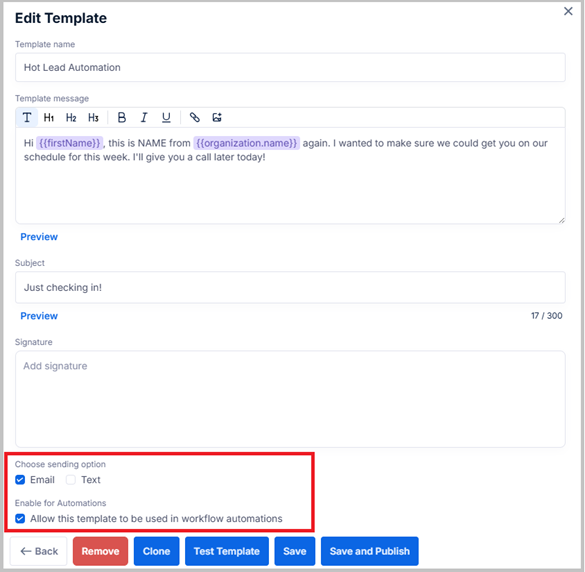
🧩 Pro Tip
Hot leads can be triggered by link clicks or positive replies — make sure your template works for both. A well-crafted, flexible message can turn a Hot Lead into a booked call.
4. Navigate to Automations in the left-hand navigation.
This opens your Automations Dashboard.
6. Click Edit to create a new automation.
7. Define a Trigger:
a. When a lead becomes Hot
b. When a lead becomes Warm
8. Select an Action:
a. Send a text message
b. Send an email
c. Send a webhook
👉🔗Understanding Webhooks and How To Configure
9. Automations should be set for next-day responses.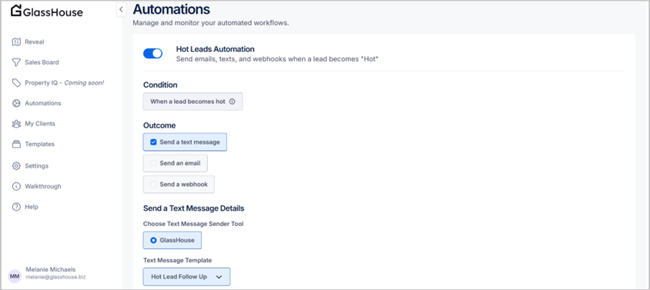
🧩 Pro Tip
Automations only contact the specific number or email address tied to the event that triggered the Warm/Hot transition.
Safeguards prevent duplicate sends when leads move to Warm automatically. (Manual Warm transitions are already covered.)
📊 Metrics
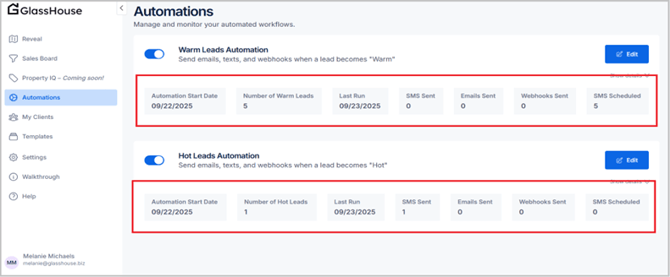
Track automation performance in the Dashboard or Metrics tab:
- Leads Contacted
- Scheduled Messages
- Last Time Automations Sent
- Method Message Was Sent
🎥 Watch the Training Video: Workflow Automations and Follow-Up
🙋 FAQs
| Question | Answer |
|---|---|
| Do automations ignore contact limitations? | Yes — if a lead is moved to Warm/Hot, automations bypass contact limitations. |
| What happens if I disable automation? | Your last stored settings are restored when re-enabled. |
| Are duplicate clicks counted? | No — duplicate clicks within the same minute are ignored. |
| Will automations fix past records? | No — automations only apply going forward. |
🧩 Pro Tip
Automations + Metrics = less busywork, faster follow-ups, and smarter insights into your lead engagement.