.png?width=350&height=78&name=Black-on-Transparent_GlassHouse-Logo%20(1).png)
💡 What It Is & Why It Matters
Reveal is where you search, filter, and select properties to create Prospect Groups for outreach.
It’s your starting point for identifying opportunities — define your target area, control what appears on the map, and build a focused audience before moving into Outreach.
🔍 Apply Filters
Filters control what appears on the map and what gets included in your selection.
Use Filters to refine your results before selecting an area.
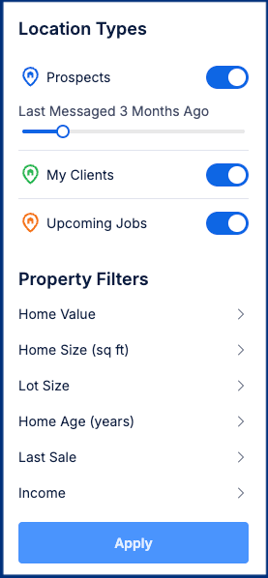
Location Types
Prospects (Blue) — previously messaged prospects based on your selected timeframe
My Clients (Green) — your existing customers
Upcoming Jobs (Orange) — scheduled work tied to properties
Adjust the Last Messaged timeframe to control how far back Prospect activity is included
Toggle each type on or off depending on what you want to see
Property Filters let you narrow your audience based on:
Home Value
Home Size (sq ft)
Lot Size
Home Age
Last Sale
Income
💡 Filters work in draft mode — nothing changes until you click Apply.
🧭 Select an Area

- Draw — outline a custom area
- Select Neighborhood — use predefined neighborhood boundaries
- Pick on Map — click directly on the map
- Search Bar — enter an address to center the map
- You can build your selection in one area or across multiple areas
- Click Clear Search to reset your current selection
💡 Group Counts are estimates and may change after deduplication and exclusions.
👥 Build Your Prospect Group
Click Add to Prospect Group to stage your selections before creating.
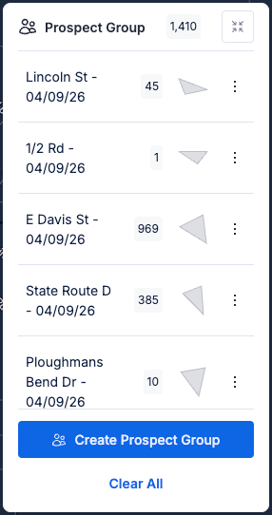 This is where your selections come together before creating the final group.
Each selection appears in the right-side panel
Combine multiple selections into a single Prospect Group
Review counts for each selection before creating the group
Use the three dots (⋮) to:
Rename a selection
Remove a selection
Create Prospect Group
A confirmation message will appear
Select View in → Outreach to access the group
❌ Clear All - Selecting Clear All will remove all staged selections.
⚠️ This action cannot be undone.
📋 More Panel
Click More (top-right) to view additional data tied to your map.
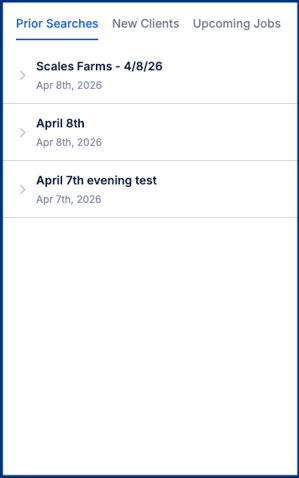 Prior Searches
Displays previously created Prospect Groups
Expand to view individual selections and counts
Click to redraw boundaries on the map
New ClientsRecently added clients with contact details
Click to jump to their location
Upcoming Jobs
Pulled from Jobber/Workiz
Sorted by date
Click to center the map on the job site
⚠️ Important Notes
Selection & Group Limits
| Type | Limit |
|---|---|
| Individual Selection | Up to 2,000 properties |
| Prospect Group | Up to 10,000 properties total |
Prospect Group Expiration
| Plan | Expiration |
|---|---|
| Reveal Credit Plan | 30 days |
| Universal Credit Plan | 365 days |
- Expired groups require credits to refresh contact data
- Expiration does not remove the group
🙋♀️ FAQs
| Question | Answer |
|---|---|
| Why is the final count different from the estimate? | Final counts reflect deduplication and exclusions. |
| What happens if I don’t have enough credits? | You’ll see required credits and can contact Sales. |
| Do my selections disappear if I leave? | No, they are saved locally. |
| Can contacts exist in multiple groups? | Yes. |
| Is there a limit to selections? | Yes — 2,000 per selection and 10,000 per group. |
| Where do groups go after creation? | Outreach. Outreach determines messaging eligibility |