.png?width=350&height=78&name=Black-on-Transparent_GlassHouse-Logo%20(1).png)
💡 What It Is
The Automations Page is where you manage your automatic follow-up workflows.
These automations send text messages, emails, or webhooks the moment a lead becomes Warm or Hot, helping you stay consistent and respond instantly — even when you’re not logged in.
🎯 Why You Want to Use It
Automations allow you to:
-
Keep every lead engaged without manual follow-ups.
-
Ensure warm and hot leads get timely communication.
-
Track performance across all automated actions.
-
Save time while maintaining consistent outreach and brand voice.
💡 Pro Tip: Once Automations are turned on, they run continuously until paused — no need to manually restart them after each campaign.
⚙️ Page Overview
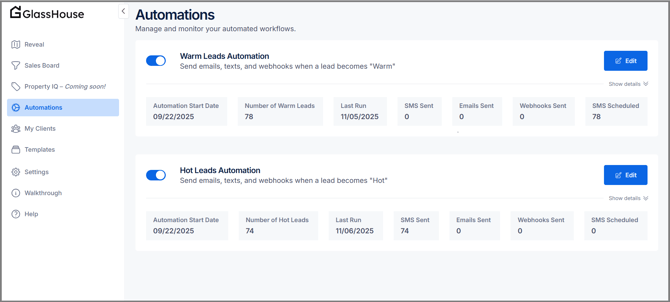
When you open the Automations tab from the left-hand menu, you’ll see your two primary automation types:
| Automation Type | Purpose |
|---|---|
| Warm Leads Automation | Sends emails, texts, or webhooks when a lead becomes Warm (usually after a reply or minor engagement). |
| Hot Leads Automation | Sends messages automatically when a lead becomes Hot (such as positive responses or link clicks). |
Each automation block shows key details to help you track activity at a glance:
| Field | Description |
|---|---|
| Automation Start Date | The date this automation was first activated. |
| Number of Leads | Total Warm or Hot leads currently being tracked by that automation. |
| Last Run | The last time the automation triggered. |
| SMS Sent / Emails Sent | Counts of messages sent automatically. |
| Webhooks Sent |
Any connected system actions (for advanced users). |
| SMS Scheduled | Messages queued for upcoming delivery. |
💡 Pro Tip:
If the toggle next to an automation is blue, it’s active.
Switch it off anytime to pause sends temporarily — all settings will be saved for when you toggle it back on.
✏️ Editing Automations
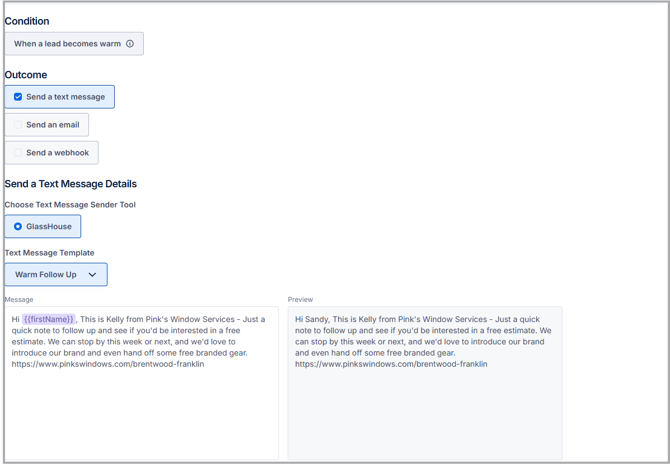
To adjust message timing, templates, or actions, click Edit on the right-hand side of either automation.
From there you can:
- Edit Outcome (Send a text, Send an email ,or Send a webhook)
- Review or replace the templates used.
-
Adjust the message delay (send instantly or after a set time).
-
Add or remove message types (SMS, Email, Webhook).
⚠️ Important:
Be sure to review both Warm and Hot automations separately — each has its own triggers, templates, and schedules.
🙋♀️ FAQs
| Question | Answer |
|---|---|
| Do I need to activate both Warm and Hot automations? | You can, but it’s optional. Some users start with just Warm Leads automation first. |
| Can I edit my messages without turning the automation off? | Yes, but best practice is to pause first, edit, then turn it back on. |
| Will this send messages to my entire list? | No — automations only send to leads that newly become Warm or Hot. |
| Can I see message results? | Yes — message activity and engagement show in your Metrics tab. |
| What if my automations stop running? | Check the toggle (should be blue) and verify that your templates are still marked as “Allow for Automations.” |
🧠 Pro Tips
-
Keep automations active for always-on lead nurturing.
-
Review results weekly to ensure messages are still performing.
-
Pair Automations with the Sales Board to manage Warm/Hot replies manually.
-
Update templates monthly to keep messaging fresh and relevant.