.png?width=350&height=78&name=Black-on-Transparent_GlassHouse-Logo%20(1).png)
💡 What It Is
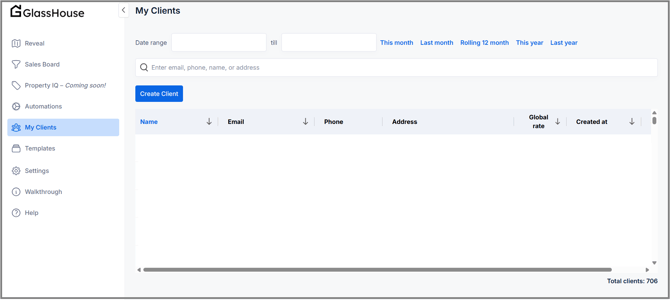
The My Clients page is your built-in client database inside GlassHouse.
It stores contact details, service history, and communication records for your active customers — keeping everything in one organized place.
Think of it as your digital Rolodex for every client who’s already done business with you.
🎯 Why You Want to Use It
Use the My Clients tab to:
-
Keep track of customer contact info and addresses.
-
Review historical clients before sending outreach.
-
Verify who’s already a paying customer before revealing or messaging new leads.
-
Add new clients manually when needed for service tracking or outreach exclusion.
💡 Pro Tip: My Clients is fully searchable — making it easy to find returning customers or confirm duplicates before you start a new campaign.
⚙️ Page Overview
The My Clients page provides a searchable, filterable list of every client associated with your organization.
| Feature / Field | Description |
|---|---|
| Date Range Filter | Narrow your view by creation or update date (e.g., “This Month,” “Last 12 Months,” “This Year”). |
| Search Bar | Search by name, email, phone number, or address. |
| Create Client | Manually add a new client if they’re not yet in the system. |
| Name | Displays each client’s name (clickable if linked to additional details). |
| Email / Phone | Contact information with quick-copy icons for easy outreach. |
| Address | Full property or service address. |
| Global Rate (⭐) | Internal rating or performance indicator. This can be used for prioritization or review. |
| Created At | Shows when the client record was added to your system. |
| Total Clients | Displays the total number of records in your account (bottom-right corner). |
✏️ Adding a New Client
If you need to manually add a client (for example, someone who booked through another channel):
-
Click Create Client.
-
Fill in the client’s details — name, email, phone, and address.
-
Save your changes to add them to your database immediately.
💡 Pro Tip: Always check the Search Bar before adding a new client — duplicates can lead to repeated outreach or reporting errors.
📊 Filtering and Sorting
You can sort any column by clicking its header (e.g., sort by newest created date or alphabetical order).
Use the Date Range filters for quick time-based searches like “This Month” or “Last Year.”
💡 Pro Tip: Combine the search bar and date filters to quickly locate recently added or high-value clients.
🙋♀️ FAQs
| Question | Answer |
|---|---|
| Can I edit a client’s details after saving? | Yes — click on their name or Edit (if available) to update their information. |
| Will clients here receive automated messages? | No — these are existing customers, not active leads. Automations target Warm/Hot leads only. |
| Why do some addresses show ‘undefined’? | This usually means the data wasn’t complete when the client was imported. You can edit to correct it. |
| Can I delete a client? | Client records can be archived or removed if needed; check with your admin for permissions. |
| Is this synced with my CRM? | Some accounts connect with CRMs (like HubSpot). If your organization uses integrations, those updates may sync automatically. |
🧠 Pro Tips
-
Keep client data clean — verify email and phone formats.
-
Use this list to segment outreach (exclude current clients from prospect sends).
-
Update addresses and service notes regularly for better recordkeeping.
-
Export or copy client info if needed for invoicing or external follow-up.