.png?width=350&height=78&name=Black-on-Transparent_GlassHouse-Logo%20(1).png)
💡 What It Is
The Reveal Map is the first place you’ll begin inside GlassHouse. This is where you explore neighborhoods, target your service areas, and “reveal” new property groups that will later appear on your Sales Board for outreach.
Use the Reveal Map to search, filter, and select properties — then click Reveal to unlock your next batch of leads.
🎯 Why You Want to Use It
Before sending your first message, you’ll use the Reveal Map to:
-
Search by address, neighborhood, or draw a custom area.
-
Filter which types of properties or clients display.
-
Reveal new prospect groups that automatically move to your Sales Board.
-
Track your remaining Reveal Credits, next Disbursement Date, and Expiration Date.
Everything starts here — it’s the foundation of your outreach strategy.
⚙️ Reveal Map Overview
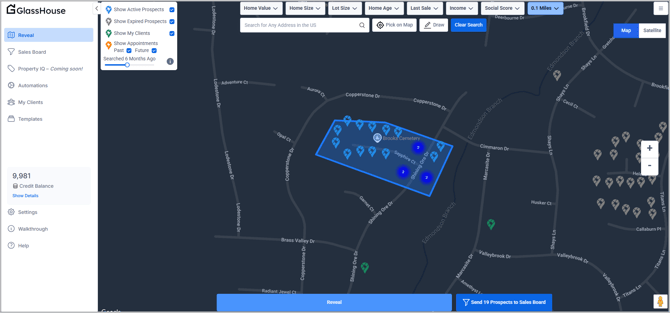
Below is a breakdown of what you see on the Reveal screen and what each feature or icon represents.
🧭 Search & Area Selection
🔍 Search Bar
Enter an address or neighborhood name in the search bar to center your map on that location.
📍 Pick on Map
Click this to select a new area directly by clicking anywhere on the map.
✏️ Draw
Outline a custom boundary around a target neighborhood or zone to create a precise search area.
❌ Clear Search
Click this to remove any drawn areas or search results and reset your map view.

💡 Pro Tip: The Draw tool is perfect for defining specific subdivisions or territories within your service area.
🧩 Filters & Icons
Use the Filters menu to control which types of properties and clients appear on your map. Each filter includes a matching icon and color code:
| Filter | Icon & Color | What It Means |
|---|---|---|
| Show Active Prospects | 🔵 Blue Pin | New, revealable properties available for outreach. Each pin represents one property. |
| Show Expired Prospects |
⚫ Gray Calendar Pin |
Properties that were previously revealed or have expired from your outreach window. |
| Show My Clients | 🟢 Green Pin | Properties already tied to your business as active clients. |
| Show Appointments (Past) | 🟠 Orange Pin | Appointments, past and future |
| Searched [X] Months Ago | Slider Control | Adjusts how far back to display previously searched or revealed properties. |
💡 Pro Tip: Toggle multiple filters on at once to get a clear visual of your active market. For example, turn on Active Prospects and Future Appointments to see where new opportunities overlap with scheduled work.
🗺️ Map & View Options
Switch between Map and Satellite for your preferred layout.
-
Map View: Simplified layout showing roads, boundaries, and icons.
-
Satellite View: Detailed aerial imagery for confirming landmarks and property layouts.
-
Street View: Drag the yellow human icon to any street to see real-world property views.
💡 Pro Tip: Use Satellite or Street View to visually confirm target neighborhoods before revealing.
🔵 Reveal Button
Once you’ve set your filters and drawn your target area, click Reveal (1) at the bottom of the screen to generate your new group.
Each reveal uses one credit from your balance and automatically sends the group to your Sales Board for follow-up.
💡 Pro Tip: Double-check your filters before clicking Reveal — every click uses one credit, and credits can’t be refunded once used.
📊 Credit Balance
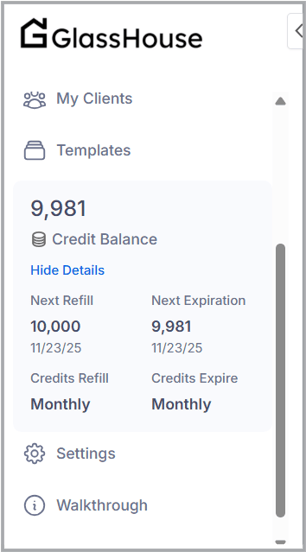
In the left menu, located under Templates, this panel shows your current Credit Balance.
-
Credit Balance — How many credits you have left.
-
Show Details — Expands to show:
-
Next Refill Date – When your new credits will be added.
-
Next Expiration Date – When unused credits will expire.
- Credit Refill - How often your account is credited.
- Credits Expire - How often your credits expire
-
💡 Pro Tip: Keep an eye on this panel if you’re working across multiple service areas — credit usage is applied per account.
🙋♀️ FAQs
| Question | Answer |
|---|---|
| What happens when I click Reveal? | A new group of properties is created and sent to your Sales Board for messaging. |
| Why don’t I see pins on my map? | Check your filters — “Active Prospects” may be turned off. |
| Can I undo a Reveal? | Reveals can’t be undone, but you can delete groups from the Sales Board if needed. |
| How often do credits refresh? | Check your “Show Details” panel for your next Disbursement Date. |
| What does each color pin mean? | Blue = Active, Orange = Expired, Green = Client, Yellow = Future Appointment, Gray = Past Appointment. |
🧠 Pro Tips
-
Plan reveals early in the month to maximize your credit cycle.
-
Hover over pins to view basic property info before revealing.
-
Use filters to layer insights — for example, “Show My Clients” + “Show Appointments.”
-
Start with smaller reveal areas to test neighborhood response before scaling.