.png?width=350&height=78&name=Black-on-Transparent_GlassHouse-Logo%20(1).png)
💡 What It Is
The Sales Board is where your revealed prospects become actionable leads.
It’s your workspace for viewing, messaging, and managing every opportunity — from newly revealed groups to engaged Warm and Hot leads.
Think of it as your GlassHouse command center: the place where outreach happens and deals progress.
🎯 Why You Want to Use It
Once you’ve revealed new neighborhoods, the Sales Board helps you:
-
Send messages to prospects by SMS or Email.
-
Track engagement as leads respond and move from Prospect → Warm → Hot.
-
Stay organized with clear columns and filters.
-
Measure activity across your team in real time.
The Sales Board gives you a live, visual funnel for your entire outreach pipeline.
⚙️ Sales Board Layout Overview
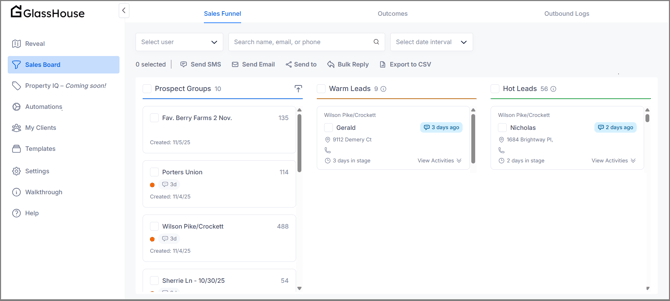
Below is an overview of what you see when you open your Sales Board and what each section does.
🧭 Main Columns
Your Sales Board is divided into three primary columns:
| Column | Purpose | Example |
|---|---|---|
| Prospect Groups | Newly revealed areas waiting for first contact. Each card represents a group of homes or properties. | “Fav. Berry Farms 2 Nov.” |
| Warm Leads | Prospects who have replied or engaged but haven’t converted yet. | “Gerald Mahoney” — 3 days ago |
| Hot Leads | Highly engaged leads (positive replies, link clicks, or booked calls). | “Nicholas Driscoll” — 2 days ago |
💡 Pro Tip: Leads automatically move between these columns as they engage with your messages — no manual updates needed.
🔧 Toolbar Actions
At the top of your Sales Board, you’ll find the main toolbar for bulk actions and search.

| Button / Field | Function |
|---|---|
| Select User | View another user’s Sales Board (Admins only). |
| Search Bar | Search by name, email, or phone number. |
| Select Date Interval | Filter your view by a date range (e.g., messages sent this week). |
| Send SMS / Send Email | Opens message composer to send individual or bulk outreach. |
| Send to | Send selected leads or groups to another connected tool (like HubSpot or Instantly). |
| Bulk Reply | Send one message to multiple Warm or Hot leads who’ve recently replied. |
| Export to CSV | Download your Sales Board data for external tracking. |
💡 Pro Tip: Use filters and the search bar together to quickly locate leads by name, date, or campaign.
🧩 Lead Cards
Each lead card shows key details and actions at a glance:
-
Lead Name / Group
-
Address & Contact Info
-
Days in Stage
-
Activity Timestamp (e.g., “3 days ago”)
-
View Activities dropdown for message history
Icons on each card give you quick status insight:
| Icon / Color | Meaning |
|---|---|
| 💬 Blue Chat Bubble | Last message sent or received timestamp. |
| 🔴 Red Dot | Indicates message limit reached — can’t send another full-group SMS this cycle. |
| 🟢 Hot Lead | Lead marked as Hot. Positive Reply or 3+ Link Clicks |
| 🟠Warm Lead | Lead marked as Warm. 2 Link CLicks or Opened Email |
💡 Pro Tip: Hover over any timestamp or icon to see exact details — like when the last message was sent.
📊 Tabs at the Top
At the top of the Sales Board, you’ll notice three main tabs:
| Tab | Purpose |
|---|---|
| Sales Funnel | Default view — organizes prospects into the three pipeline stages (Prospect, Warm, Hot). |
| Outcomes | Summarizes results and responses to help measure campaign performance. |
| Outbound Logs | Shows every outbound message event for visibility and compliance. |
💡 Pro Tip: The Sales Funnel tab is where most users spend their time — it’s your day-to-day activity hub.
🙋♀️ FAQs
| Question | Answer |
|---|---|
| How do leads move between columns? | Automatically — when a prospect replies, they move to Warm. When engagement is strong (reply, link click, etc.), they move to Hot. |
| Can I message multiple groups at once? | Yes, use Bulk Send or Bulk Reply in the toolbar. |
| What does “3 days ago” mean? | The last time activity was recorded (message sent or reply received). |
| Why is a lead grayed out or locked? | The message limit for that group has been reached — it’ll reset in 30 days. |
| Can I export leads from the Sales Board? | Yes. Use the Export to CSV button to download your current view. |
🧠 Pro Tips
-
Check your Sales Board daily — it updates in real time as leads engage.
-
Sort by date interval to focus on the most recent activity.
-
Use Bulk Reply to quickly follow up with Warm/Hot leads.
-
If a group shows “0 prospects,” refresh or check your Reveal Map — it may still be enriching.
-
Click View Activities for message logs before sending a follow-up.