.png?width=350&height=78&name=Black-on-Transparent_GlassHouse-Logo%20(1).png)
💡 What It Is
The Settings Page is where you manage your company’s core account information, contact rules, and integrations.
This is typically the first place your team or admin visits to verify that your company name, contact details, and communication preferences are set up correctly.
🎯 Why You Want to Use It
The Settings page ensures:
-
Your business information appears correctly in messages and campaigns.
-
All communication limits and compliance rules match your account type.
- Add Users
-
Your team and integrations are properly configured before launching outreach.
💡 Pro Tip: Keep your company name, website, and logo consistent here — it determines how your brand appears to prospects and leads in messages.
⚙️ Page Overview
When you select Settings from the left-hand menu, you’ll see the following tabs at the top:
| Tab | Purpose |
|---|---|
| Company Details | Manage your business information, contact settings, and communication limits |
| Manage Users | Add, remove, or adjust permissions for team members |
| Integrations | Connect GlassHouse with other platforms (e.g., HubSpot, Twilio, Instantly, or Telnyx) |
| Landing Page | View and manage your GlassHouse landing page and CTA behavior used in outbound messaging |
🏢 Company Details
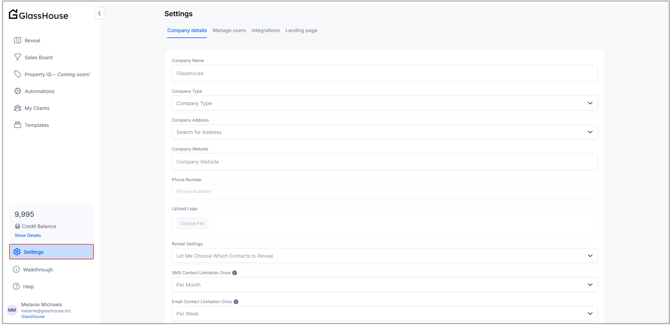
This tab controls your organization’s basic profile information:
| Field | Description |
|---|---|
| Company Name | The name displayed on your account and in your message signatures. |
| Company Type | The type of service your business provides (e.g., Window Cleaning, Lawn Care). |
| Company Address | Used for compliance and location-based features. |
| Company Website | Appears in links or branding within messages. |
| Phone Number | Your primary business contact number. |
| Upload Logo | Upload your company logo for branding consistency. |
| Reveal Settings | Adjust search visibility and contact lookup preferences. |
| SMS Contact Limitation Once | Sets how often a lead can receive messages (e.g., per month). |
| Email Contact Limitation Once | Controls email frequency (e.g., per day). |
💡 Pro Tip:
GlassHouse automatically enforces these contact limitations to stay compliant with 10DLC and general outreach best practices.
👥 Manage Users
Under this tab, you can:
-
Add new users with email-based invites.
-
Adjust permissions (e.g., admin vs. standard access).
-
Deactive users to keep your team list current.

💡 Pro Tip: Only account admins can manage users. Always verify user roles after onboarding to ensure proper access.
🔗 Integrations
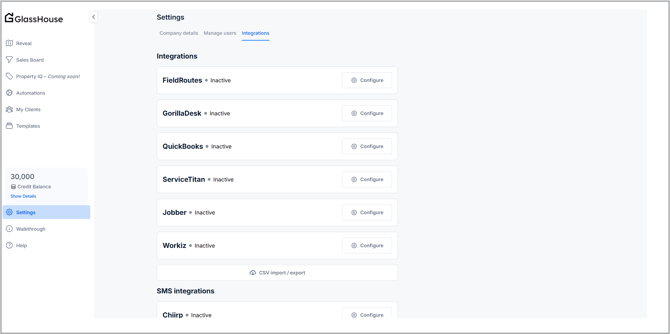
Here’s where you connect GlassHouse with other tools your team uses:
| Integration Type | Purpose |
|---|---|
| FieldRoutes, GorillaDesk, Quickbooks, ServiceTitan, Jobber, Workiz | Sync contacts and leads, between GlassHouse and your CRM |
| Chiirp, Hatch, Textla | SMS Integrations |
| Instantly |
💡 Pro Tip: Each integration may require credentials or an API key. If you’re not sure what to enter, check with your onboarding specialist.
🌐 Landing Pages
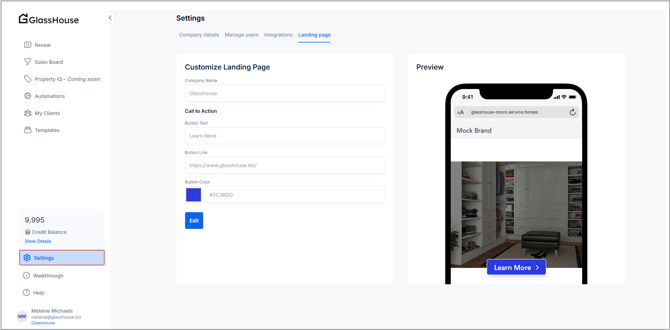
Every GlassHouse account includes an automatically generated landing page used in outbound messaging.
Your landing page:
-
Provides a compliant destination for SMS and email outreach
-
Includes a built-in lead capture form
-
Routes engagement back into GlassHouse for tracking and follow-up
💡 Important to Know:
-
Once SMS Brand Registration is submitted, limited customization becomes available (such as CTA text, link, and button color)
Some landing page elements are fixed for compliance and cannot be changed
🙋♀️ FAQs
| Question | Answer |
|---|---|
| Can I update my logo or contact info later? | Yes — all fields are editable at any time. |
| What happens if I change my company name? | It updates across outbound messages, your landing page, and your system profile. This name must remain consistent with your SMS Registration. |
| Do SMS limits reset automatically? | Yes — they reset based on your selected frequency (monthly or daily). |
| Who can manage users or integrations? | Only users with Admin permissions. |
| What if my integration disconnects? | Revisit the Integrations tab and reauthorize access using your credentials. |
| Do I need to set up my landing page? | No — your landing page is created automatically. Limited customization becomes available after SMS Brand Registration is submitted. |
| What happens when someone submits the form on my landing page? | Form submissions create a Hot Lead, appear in the Activity Log, and trigger a Hot Lead email notification. |
| Do CTA button clicks change lead status? | No — CTA clicks are logged for visibility only and do not change lead status. |